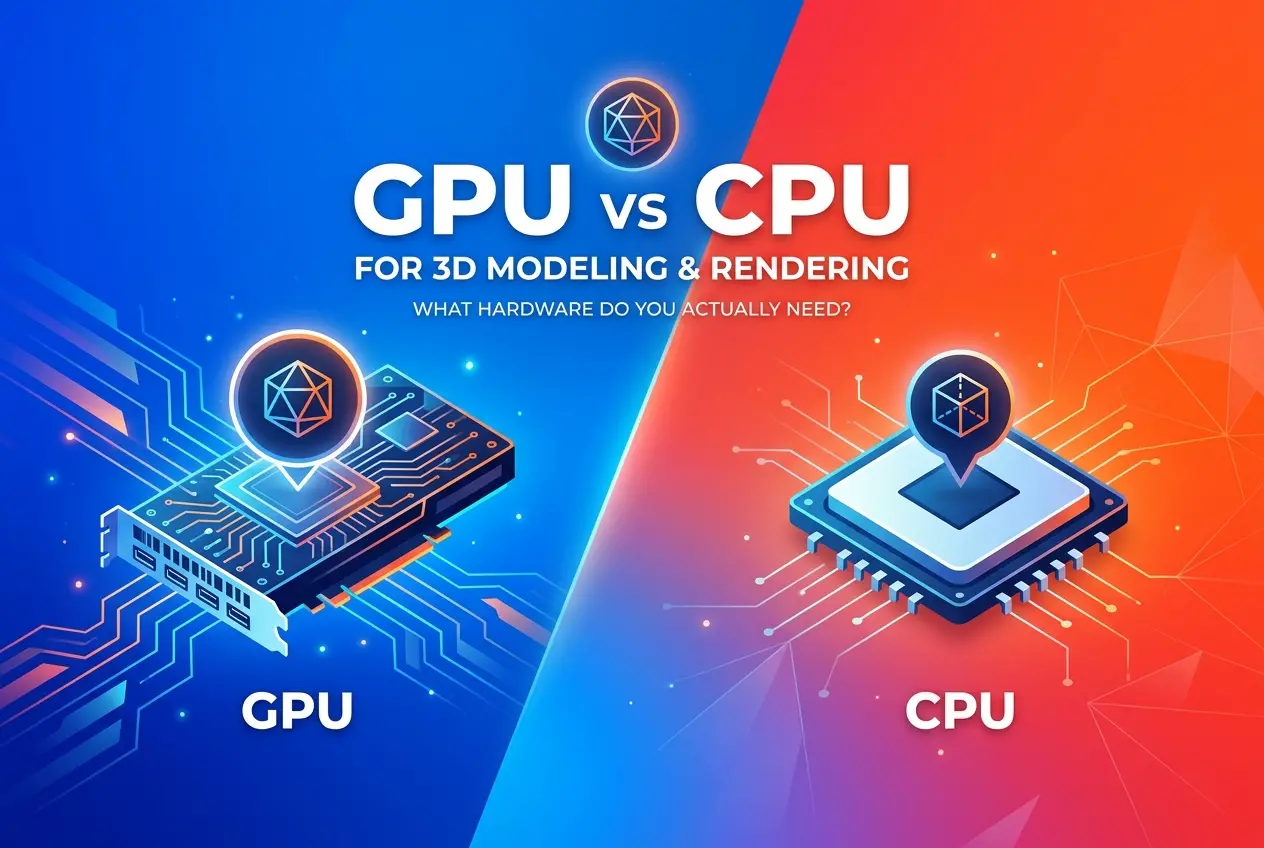
When clients ask us about our studio setup, or when junior artists want advice on building their first workstation, the conversation inevitably turns to one specific debate: GPU vs CPU for 3D Modeling and Rendering: What Hardware Do You Actually Need? It is a question that plagues almost everyone starting in architectural visualization, product design, or e-commerce rendering. People often assume that buying the most expensive computer parts will automatically result in faster workflows and better images. In reality, 3D software utilizes hardware in very specific, sometimes counterintuitive ways. Understanding how your computer actually processes 3D data will save you from spending thousands of dollars on the wrong components.
To make sense of workstation hardware, you have to separate the 3D pipeline into two distinct phases: modeling and rendering. Modeling is the active process of creating geometry, applying modifiers, and setting up the scene. Rendering is the passive process where the computer calculates the lighting, materials, and final pixels. These two phases rely on completely different types of processing power. In our studio, we build our workstations specifically to balance these two tasks, ensuring our artists are not left staring at frozen screens during either phase.
Understanding the Core Difference Between Processors and Graphics Cards
Before looking at specific software behaviors, it helps to understand the fundamental architectural differences between a Central Processing Unit (CPU) and a Graphics Processing Unit (GPU). Think of the CPU as a small team of highly educated, extremely fast master chefs. There might only be 16 or 32 of them, but they can execute highly complex, sequential recipes incredibly quickly. They are designed to handle a wide variety of tasks, switching between them with ease.
The GPU, on the other hand, is like an army of thousands of line cooks. Individually, they are much slower and less versatile than the master chefs. However, if you need to chop ten thousand carrots, the army of line cooks will finish the job in a fraction of the time it would take the small team of master chefs. GPUs are built for parallel processing—doing thousands of simple math equations at the exact same time.
This distinction dictates exactly how 3D software behaves. Some tasks require the sequential brilliance of the master chef, while others require the parallel brute force of the line cooks.
Why 3D Modeling Relies Heavily on the CPU
A common mistake we see is someone buying a massively expensive graphics card, opening up a heavy 3ds Max or Blender scene, and wondering why the viewport is still lagging when they try to move a vertex. The harsh reality is that 3D modeling is an inherently linear, sequential process. It relies almost entirely on the single-core performance of your CPU.
When you build a model, you are often stacking operations. You create a base mesh, you extrude a polygon, you apply a smoothing modifier, and then you apply a bend modifier. The computer cannot calculate the bend modifier until it has calculated the smoothing modifier, and it cannot calculate the smoothing until the extrusion is done. Because step D depends entirely on step C, B, and A being finished, the computer cannot split this task across multiple cores. It has to send the task down a single lane.
Therefore, having a CPU with 64 cores does absolutely nothing to speed up your active modeling workflow. What matters for modeling is the clock speed—how fast a single core can process instructions. If you are primarily an active modeler, a processor with fewer cores but a higher base clock speed will actually give you a much smoother viewport experience than a highly expensive, multi-core server processor.
GPU vs CPU for 3D Modeling and Rendering: What Hardware Do You Actually Need?

Once the modeling is done and you hit the render button, the rules completely change. Rendering an image involves calculating how light rays bounce around a scene, interact with materials, and hit the virtual camera sensor. Calculating one pixel on the top left of your image does not depend on calculating a pixel on the bottom right. Because of this, rendering is a highly parallel task.
This brings us to the core of the GPU vs CPU for 3D Modeling and Rendering: What Hardware Do You Actually Need? debate. For years, CPU rendering was the only reliable option for professional studios. Render engines like V-Ray, Corona, and Arnold used the CPU because it was stable and could access the computer’s massive pool of system RAM. If you had a complex architectural scene with millions of polygons and dozens of high-resolution textures, the CPU could handle it without crashing.
Today, GPU rendering has taken over a massive portion of the industry. Engines like Redshift, Octane, and V-Ray GPU utilize the thousands of cores on a graphics card to calculate light bounces simultaneously. For many scenes, a modern GPU can render a final frame significantly faster than a high-end CPU. The speed difference is particularly noticeable during the look-development phase, where artists need near-instant feedback in the interactive viewport while adjusting lighting and materials.
The VRAM Bottleneck: The Hidden Trap of GPU Rendering
If GPUs are so much faster at rendering, why do studios like ours still use CPU rendering for certain projects? The answer comes down to memory. This is the most critical technical limitation you must understand before choosing your hardware.
When you render with a CPU, the render engine stores the scene data (geometry, textures, displacement maps) in your system RAM. It is very easy and relatively cheap to install 64GB, 128GB, or even 256GB of system RAM in a desktop computer. This means CPU engines can render virtually anything, no matter how massive or complex the scene is.
When you render with a GPU, the entire scene must be loaded into the Video RAM (VRAM) located directly on the graphics card itself. VRAM is expensive and strictly limited. Consumer graphics cards typically max out at 24GB of VRAM, and many mid-range cards only have 8GB or 12GB. If your architectural exterior scene contains heavy tree models, 8K concrete textures, and complex displacement maps, it can easily exceed 24GB of data.
When a GPU runs out of VRAM, one of two things happens. Either the render engine completely crashes and refuses to render, or it attempts to use “out-of-core” memory, which means it starts borrowing system RAM. The moment a GPU has to reach across the motherboard to borrow system RAM, the rendering speed plummets, entirely defeating the purpose of using a fast GPU in the first place.
Practical Observations: What Clients and Junior Artists Get Wrong

Over the years, we have seen countless hardware mistakes. One of the most frequent issues occurs when a client or an aspiring artist buys a high-end gaming laptop, assuming it will be perfect for 3D rendering. While gaming laptops have powerful components on paper, they suffer from thermal throttling. Rendering pushes hardware to 100% capacity for sustained periods—sometimes hours or days. Laptops simply do not have the cooling capacity to handle this. Within ten minutes, the laptop overheats, the components automatically slow themselves down to prevent melting, and your render times double.
Another common observation is the unbalanced build. We often see people pair a top-tier, expensive graphics card with a cheap, entry-level CPU and a low-capacity power supply. In 3D work, the CPU still has to prepare the scene and feed the data to the GPU before rendering begins. A weak CPU will bottleneck a powerful GPU, leaving the graphics card waiting around for instructions. A balanced system is always better than a system with one overpowered component.
We also regularly consult with clients who try to render in-house to save money, only to realize their hardware cannot handle the specific demands of their project. A furniture manufacturer might try to render a massive catalog of products in high resolution. They quickly discover that managing the render times, hardware crashes, and software licenses costs them more in lost productivity than simply outsourcing the work to a dedicated studio.
Building the Right Setup for Your Specific Discipline
Because the answer to “GPU vs CPU for 3D Modeling and Rendering: What Hardware Do You Actually Need?” depends entirely on what you are creating, we recommend tailoring your hardware to your specific discipline. Here is how we break it down based on the types of projects we handle daily.
Architectural Visualization (Exteriors and Large Interiors)
Archviz is incredibly heavy on memory. You are dealing with high-poly vegetation, massive contextual environments, and large textures. If you prefer GPU rendering, you absolutely must prioritize a graphics card with the highest VRAM possible (16GB to 24GB minimum). However, many archviz professionals still rely on powerful multi-core CPUs and engines like Corona Renderer simply because it removes the VRAM limitation entirely, allowing for unlimited scene complexity. You will also want a minimum of 64GB of system RAM.
Product Rendering and Studio Shots
If you are rendering consumer electronics, cosmetics, or isolated furniture pieces, your scenes will generally be much lighter. They rarely exceed the VRAM limits of modern graphics cards. For this discipline, GPU rendering is heavily favored. A mid-to-high-tier GPU will tear through product renders, allowing for rapid iterations and fast final outputs. You can pair this with a CPU that has excellent single-core speed to ensure your modeling workflow remains snappy.
Animation and Motion Graphics
Rendering a single still image might take an hour, but rendering a 30-second animation at 30 frames per second means rendering 900 individual images. For animation, GPU rendering is almost mandatory unless you have access to a massive commercial render farm. The speed advantage of the GPU becomes critical when multiplying render times across hundreds of frames.
Summary of Hardware Priorities
| Task / Discipline | Primary Hardware Dependency | Key Specifications to Prioritize |
|---|---|---|
| Active 3D Modeling (All disciplines) | CPU (Single-core performance) | High base clock speed, fast single-thread performance. |
| Large Architectural Rendering | CPU (Multi-core) OR High-VRAM GPU | 64GB+ System RAM for CPU engines; 24GB VRAM for GPU engines. |
| Product Rendering | GPU | Fast CUDA/OptiX performance, 12GB+ VRAM. |
| 3D Animation | GPU | Maximum GPU rendering speed, multiple GPUs if possible. |
Final Thoughts on Workstation Hardware
At the end of the day, hardware is merely a tool. A faster computer will not make you a better artist, nor will it fix bad lighting, poor composition, or unrealistic materials. It simply reduces the friction between your ideas and the final image. By understanding how your software interacts with your processor and graphics card, you can build a workstation that keeps you working efficiently rather than waiting on loading bars.
Of course, maintaining high-end hardware, managing software licenses, and troubleshooting technical bottlenecks can quickly become a full-time job. Many of our clients are architects and product developers who realized their time is better spent designing rather than fighting with VRAM limits and render settings. If you are finding that hardware limitations are slowing down your project timelines, it might be time to let a professional studio handle the heavy lifting. If you want to discuss your next project and see how our dedicated rendering infrastructure can help bring your designs to life, contact us today.